Validating Windows Firewall Rules on managed devices
Delete this text and replace it with your own content.
When a Windows Firewall Ruleset is applied to a device, KACE Cloud queries the device during every inventory for each expected rule. If a rule is not found or a value is incorrect, this is indicated on the device's Security tab, in the Windows Firewall Ruleset view.
There are three possible reasons causing a rule to be missing or invalid:
- A rule is updated but the device missed the update command.
- A rule is updated but the device rejected it.
- An administrator with admin rights changed values on the device.
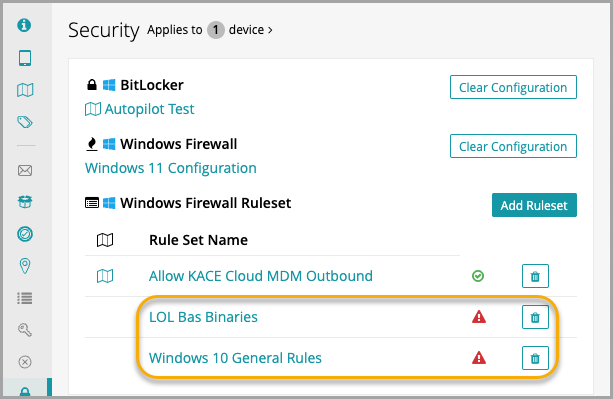
If you click into the Ruleset, the list of rules on the device shows any that are invalid. There is also an option to list only invalid rules.

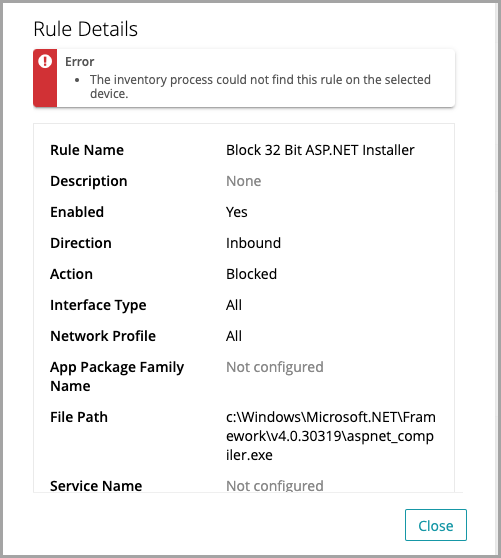
When you click an invalid rule, a validation error appears at the top of the view. This can indicate, for example, that the inventory process could not find the rule on the device.
When environment variables are used in an app file path, KACE Cloud can only validate the path after the environment variable. This is because Windows returns the full path used and KACE Cloud cannot validate the correct drive letter. For example, an app file path is created with "%Program_Files%\CustomInstall\Custom.exe" and a rule is set up to block outbound access. If this path points to the C:\ drive, KACE Cloud cannot validate the rule if a user changes the path to the D:\ drive. The workaround to this issue is to always use a full path for all critical apps.
To fix an invalid ruleset, simply re-apply it to the device.